Time-Saving Gains of the Dramatify Slack Integration (Beta)

Keep working, stay mobile, and never miss an update.

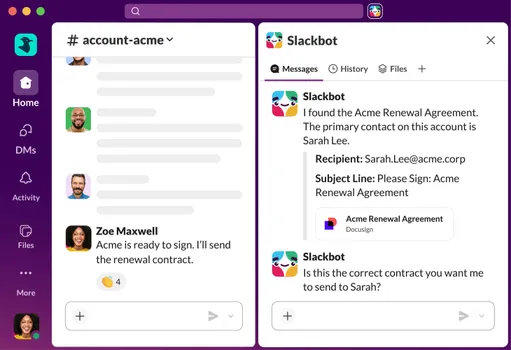
Dramatify Slack integration showing production updates and files in a Slack channel

Slack is a popular team messaging app designed to simplify communication and keep everyone in sync. For media and broadcasting professionals juggling scripts, schedules, call sheets, and last-minute changes, Slack offers a fast and organised way to stay updated without endless email chains or group chats.

Slack operates across desktop, tablet, and mobile devices, so your team can receive production updates from Dramatify anywhere — on set, in the office, or while travelling.

Coming soon! Contact us for Beta access.

What is Slack, and why do media teams love it?

Slack lets your team:

  • Send messages in channels or private groups
  • Share files and documents
  • Search past messages and updates
  • Use apps and integrations, like Dramatify, for notifications

It's available on browsers, desktop applications, and mobile/tablet devices.

Watch: How to use the Dramatify Slack integration

Why connect Dramatify to Slack?

  • Get real-time updates about changes in your production
  • Keep your whole team informed, even when they're not logged into Dramatify
  • Reduce the risk of missing important information

Downloading Slack

Slack is available for desktop (Mac, Windows, Linux), iOS and Android — download it from slack.com.

Joining your team's Slack workspace and channels

Step 1: Get an invitation. An invitation is required from your company's Slack workspace. Request one from your production manager, team leader, or Slack administrator. You'll receive an email with a subject like "You've been invited to join [Company Name] on Slack."

Step 2: Accept the invitation. Open the email and click Join Now or Get Started. Create a Slack account if needed, set your name and password, and log in to your company's Slack workspace. You can download the app or use it in a web browser.

Step 3: Join the right channels.

  • To join a public channel: click the "+" next to Channels in the left sidebar, select Browse channels, find the channel related to your production and click Join.
  • To accept an invitation to a private channel: private channels require an invitation only — the channel appears automatically in your channel list once you're invited. Ask the channel admin or your production manager for access if needed.

If you're unsure which channel to join, ask your team leader or check your production instructions in Dramatify.

Setting up Slack for Dramatify

Only Admin users can add the Slack integration.

1. Create a Slack account. If you're not already using Slack, visit slack.com and create a free account. Setup includes creating a workspace and a public channel for organisational use (recommended as a general channel). Already a Slack user? Just create a public channel to integrate with Dramatify.

2. Install Slack for your company in Dramatify.

  1. Go to Company account, then click Settings
  2. Scroll to Integrations
  3. Click Install Dramatify's Slack App and follow the instructions

A test message capability is available to confirm the connection — just make sure the channel is Public (it will have a # sign before the name).

Adding a Slack channel for each production

You can create a separate channel per project or production, to keep updates organised and control who sees what.

  1. Add a new channel to Slack for the production
  2. In Slack, click the channel and open the channel details
  3. Copy the Channel ID from the bottom of the popup
  4. In Dramatify, go to the Project page
  5. Click Settings in the orange toolbar
  6. Scroll to Integrations and click Add Slack Channel
  7. Enter or paste the channel name and ID before saving

You can have a separate Slack channel for each production to keep updates organised.

Setting up a private channel

For selective access:

  1. Add a new channel to Slack for the production
  2. Post the following in the channel: @dramatify
  3. In Slack, click the channel and open the channel details
  4. Copy the Channel ID from the bottom of the popup
  5. Follow the same Dramatify instructions as for a public channel, above

Controlling who can see your Slack channels

In Dramatify, updates are filtered based on the access rights of each individual user — however, Dramatify sends all updates to Slack itself. Channel options are:

  • Public — anyone in the Slack workspace can join
  • Private — only invited members can see and access it

The first channel created for the Dramatify integration must be public for the integration to function, but access levels can be changed at any time afterwards.

Want early access?

The Slack integration is currently in beta. Contact us to request access for your production.