How do I add a crew member to a production in Dramatify?
Last updated:
Here is how to add a new crew member to your production in Dramatify.
How do I add a crew member?
- Click on Crew in the sidebar menu
- Click the Add crew button to manually add a new crew member, add a member from your network or upload a CSV file.
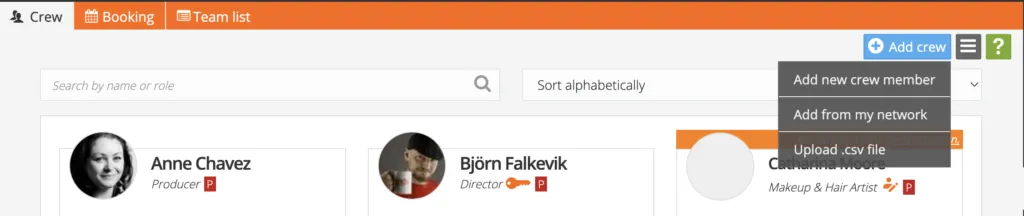
- Follow the instructions in each method to add your new team member. You can invite them now or later.
How do I assign basic access levels to a crew member?
- When adding a crew member, you must first add a basic level per person on your company account. Select between
- Contributor - for team members who will work in Dramatify, have access to edit production details and for whom you pay a seat license – or
- Read-only - for crew and cast members who can read information but cannot make edits. Read-only members are free.
How do I set production access level and access to various features?
When adding a crew member you will either come to the crew member’s edit page, or can go there by:
- Clicking Crew in the sidebar menu
- Finding the crew member’s card for whom you want to edit access.
- Hover over the upper right corner of the card and click the edit icon.
There is two main access levels to keep track of:
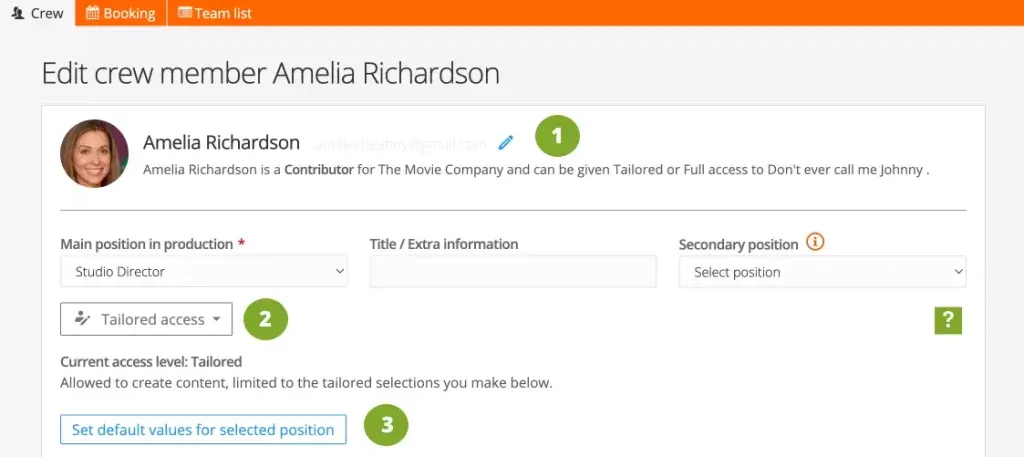
- The basic access level described above. Click the edit icon beside #1 to switch between Contributor and Read-only. Note that the team member must have the Contributor role – even if they only need read-only in your production – if they work on another of your company’s production where Full access or Tailored access is required.
- In the production access dropdown (#2) you select between the three main production access levels:
- Full access – to everything including protected crew and cast information.
- Tailored access - for crew who need to work with different tools and sections. You can set detailed permissions per person.
- Read-only - for crew and cast who need to read and access limited information. You can set personalised access per person.
- When you select Tailored Access you can click the Set default values for selected position button to get a quick suggestion of the permissions suitable for that role. Below, you can then go ahead and set exact permissions for that person and role depending on your production’s requirements.
Team - important to set for crew who should be scheduled.
If your crew member should be scheduled in the Crew scheduling, and especially if you want to use Call sheets, remember to add the crew member to one or more teams.
- On the edit crew member page, scroll down to the Production settings section and click on the title bar to expand it.
- Click to select the team or teams your member should be a part of.

- You can manage teams in Planning > Settings and change team names, assign colours and shut off superfluous teams.
Was this article helpful?
Thanks for your feedback!