Add the production schedule to your calendar
Last updated:
Stay on top of your production schedule by subscribing to your Dramatify calendar in your preferred calendar app — whether it’s Outlook, Google Calendar, Apple Calendar, or any other app that supports iCal links.
Note: Events may not appear immediately after being added to Dramatify. The update delay depends on your calendar provider.
For Users: How to subscribe to the Dramatify production calendar
1. Get your iCal link from Dramatify
- Log in to Dramatify.
- Click your name in the top navigation and select Profile / Settings.
- Click Settings in the orange toolbar.
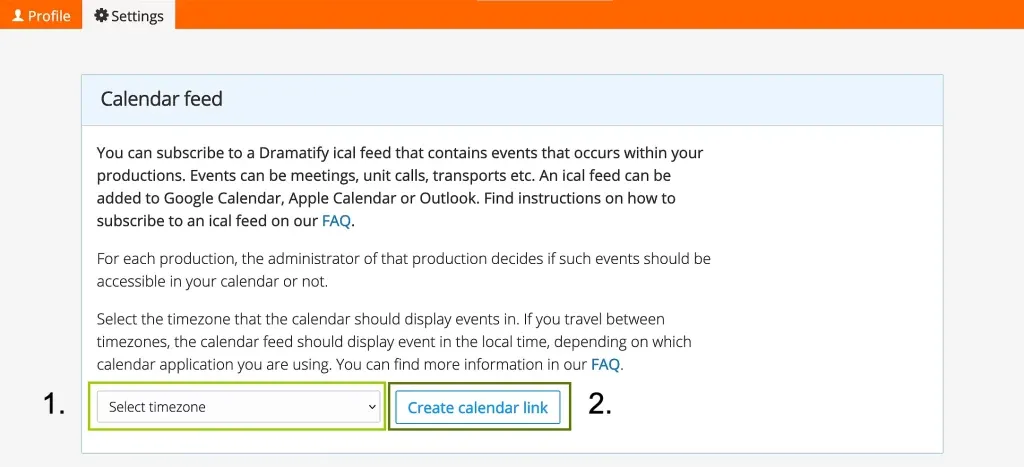
- Select your time zone, then click Create calendar link.
- Click Copy link to copy your unique calendar URL — you’ll need it for the next step.
2. Add your calendar to Outlook
Paste the link you copied in step 1 into Outlook. Follow Microsoft’s guide starting in the section “Add internet calendars.”
3. Add your calendar to Google Calendar
Paste your calendar link into Google Calendar. Follow Google’s instructions beginning in the section “Use a link to add a public calendar.”
4. Add your calendar to Apple Calendar
Paste your link into Apple Calendar. Follow Apple’s guide for Mac or iPhone depending on your device.
5. Add your calendar to other calendar apps
Search online for “Subscribe to calendar with a URL link” + your calendar app name, then follow the instructions, pasting in your Dramatify link when prompted.
For Managers: Managing what appears in team calendars
Team members can subscribe to a personal calendar feed showing the production events and call sheet items they’re involved in.
Note: Events appear with a delay depending on each team member’s calendar provider.
What gets published
The personal calendar feed includes:
- Events in the Day Planner / Day List
- Events in Call Sheets
Only published day lists and call sheets are included. Unpublished items will not appear in anyone’s feed.
How to see what’s published
In the Production Calendar:
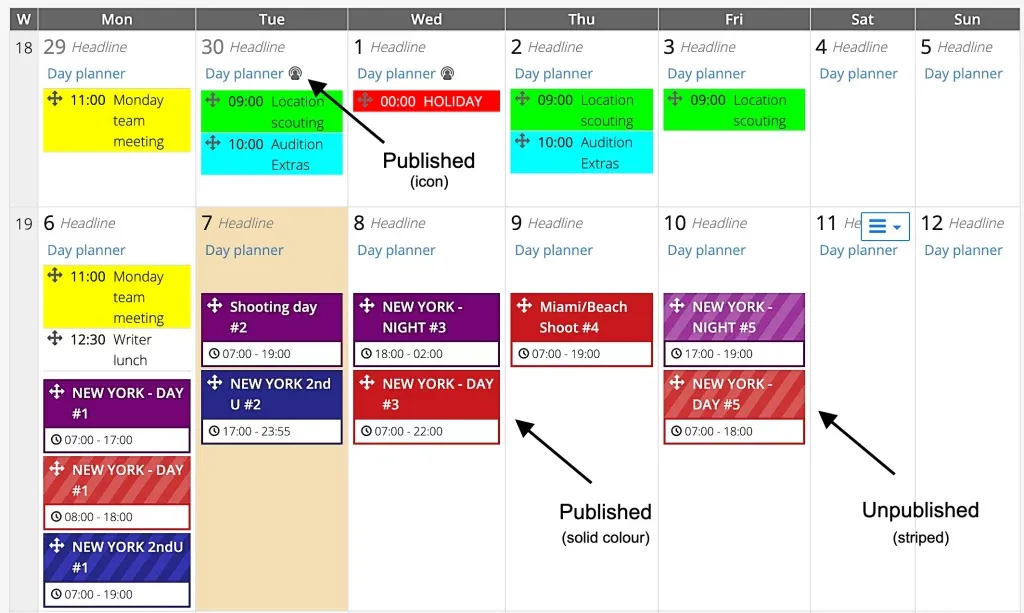
- Solid color background = published call sheet
- Striped background = unpublished (visible only to users with full Planning access)
- Published day plan events display a small icon next to the link.
Who can see events
An event appears in a team member’s calendar if they are:
- Listed by name on the schedule
- Part of a scheduled department
- Included as crew or cast in a call sheet
- Included under “Everyone”
A team means a defined group in a published call sheet (e.g., camera team). Your production settings determine whether only booked crew members or all team members are added.
Turning off calendar feeds
- Go to Planning > Settings (orange toolbar).
- Open the Scheduling & Call Sheets section.
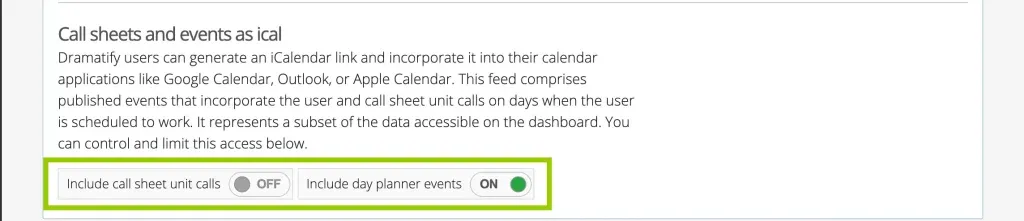
- Scroll down to Call sheets and events as iCal.
- Turn off call sheet events, day planner events, or both, by switching the ON toggle to OFF.
Was this article helpful?
Thanks for your feedback!