Watermarking Screenplays and Adding a Cover Page for Printing
Last updated:
Preparing your screenplay or script sides for printing in Dramatify is quick, professional, and secure. Each document can be automatically watermarked, tagged, and made fully trackable — complete with a personalised watermark and optional cover page.
About Dramatify’s Automatic Watermarking
Watermarking screenplays is an established industry standard for protecting intellectual property and managing distribution. At Dramatify, every screenplay printed from the platform — whether on paper or as a PDF — is automatically watermarked, tagged, and traceable. If your production company profile includes a logo, it is automatically used as a watermark. You can add or update a logo at any time.
Each printed copy includes your production company logo and a footer with complete printing and copyright information:
Printed [date] for [name of receiver] [title] [email address] © [Production Company Name]
Example:
Printed 2025-11-03 for Jane Smith, Screenwriter – jane@theproductioncompany.com © The Production Company
Check Your Watermark Logo
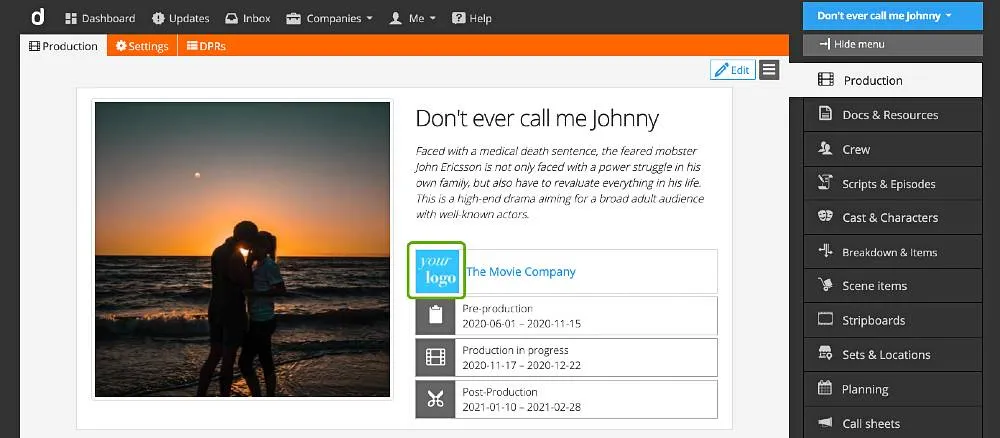
- Go to the Project page of your production.
- Look to the left of your production company name:
- If your logo is visible, it will be used automatically.
- If you see a grey camera icon, upload your logo to replace the placeholder as per below.
Adding or Updating Your Company Logo
- On the Project page, click the name of your production company.
- On the company profile page, click Edit.
- Under Logo, click “Select image” to upload your company logo and save your changes, or click the trash can to remove and replace your logo.
Note: Only business account administrators can edit company information. If you don’t have access, contact your production company admin.
Logo Display Notes
- The logo appears as a square in Dramatify, but retains its original proportions when printed.
- On printed pages, the watermark logo is shown in light grey for optimal readability.
Previewing Your Watermarked Script
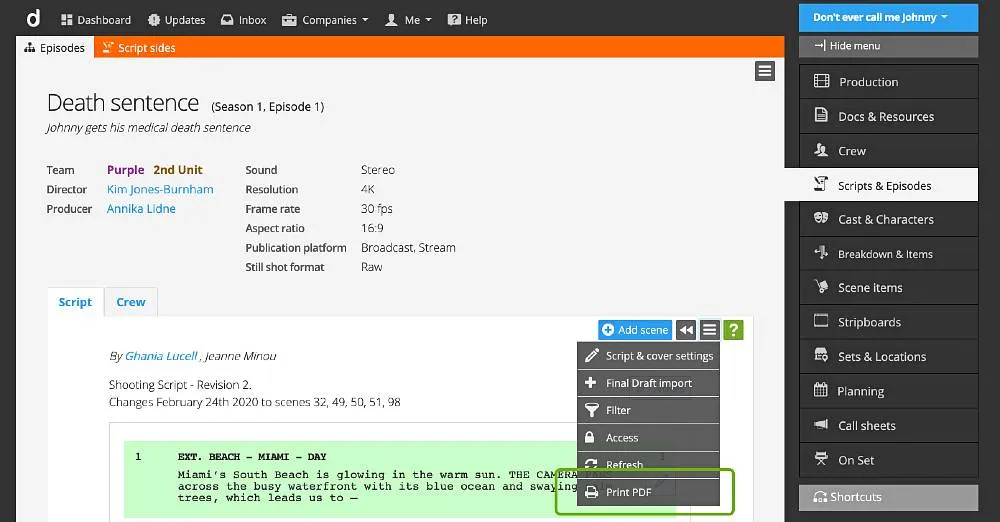
- Open Scripts in your project.
- Select your screenplay or script sides.
- Click the menu icon and choose “Print PDF.”
Your company logo appears as a watermark on the first page of the script (not on the cover). The footer shows the recipient’s details and the printing date.
Personalised Watermarks for Screenplays and Script Sides
For added security and traceability, Dramatify also allows screenplays and script sides to be printed or exported with personalised watermarks. Each copy can display:
- The recipient’s name
- The production company name - added automatically
- The printing date - added automatically
To print, click the black menu icon and select Print with watermark. This supports secure sharing of sensitive documents and makes every distributed copy uniquely identifiable.

Adding a Custom Cover Page
When you import a screenplay, Dramatify can include credit information from your .fdx file. If you’ve written the screenplay directly in Dramatify, you can create a professional cover page within the editor.
To Add or Edit a Cover Page
- Go to Scripts (& Episodes). If your production includes episodes, click the relevant episode.
- Click the menu icon on the right-hand side of the orange toolbar.
- Select Edit script.
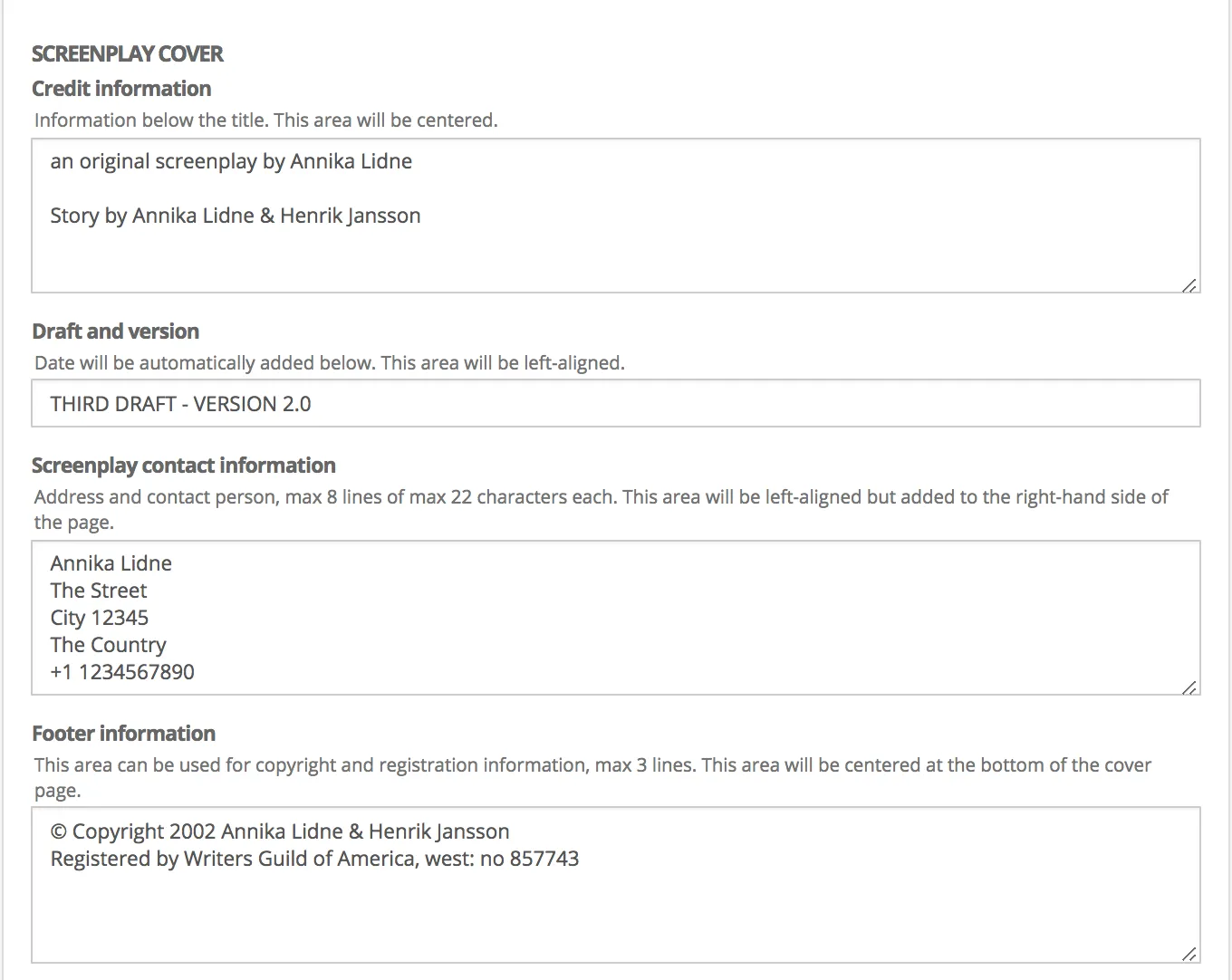
- Scroll to the Cover Page section and complete your details.
Cover Page Fields
- Title and credits (centred)
- Draft and version (left side)
- Contact details (right side)
- Copyright and registration (centred footer)
Your printed PDF will include a clean, professional cover page followed by your fully watermarked script.
Summary
Dramatify automatically handles watermarking and tracking for all printed screenplays and script sides. With a custom logo, personalised receiver details, and a formatted cover page, your documents are ready for secure and professional distribution.
Was this article helpful?
Thanks for your feedback!