Bulk delete or flush project data
Last updated:
Sometimes you may need to remove all or large parts of your project data — for example, if a screenplay import didn’t work as expected, a major rewrite has changed everything, or you want to start over.
Where to find the bulk delete function
Go to Project in the right-hand sidebar, click Settings in the orange toolbar, and then select Delete content from project.
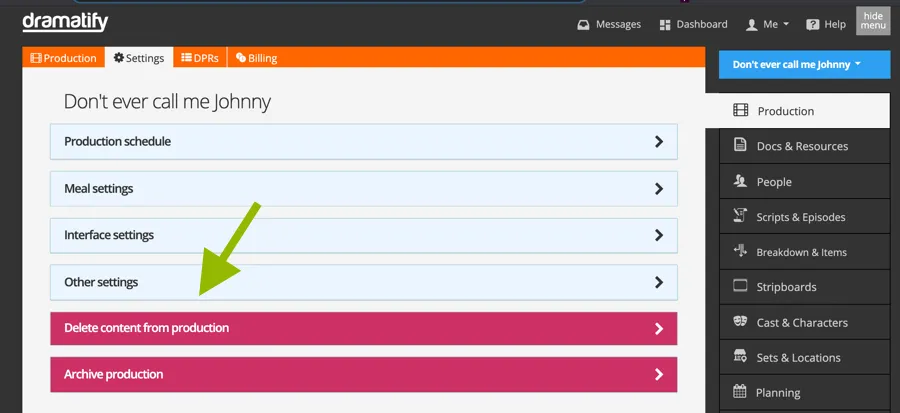
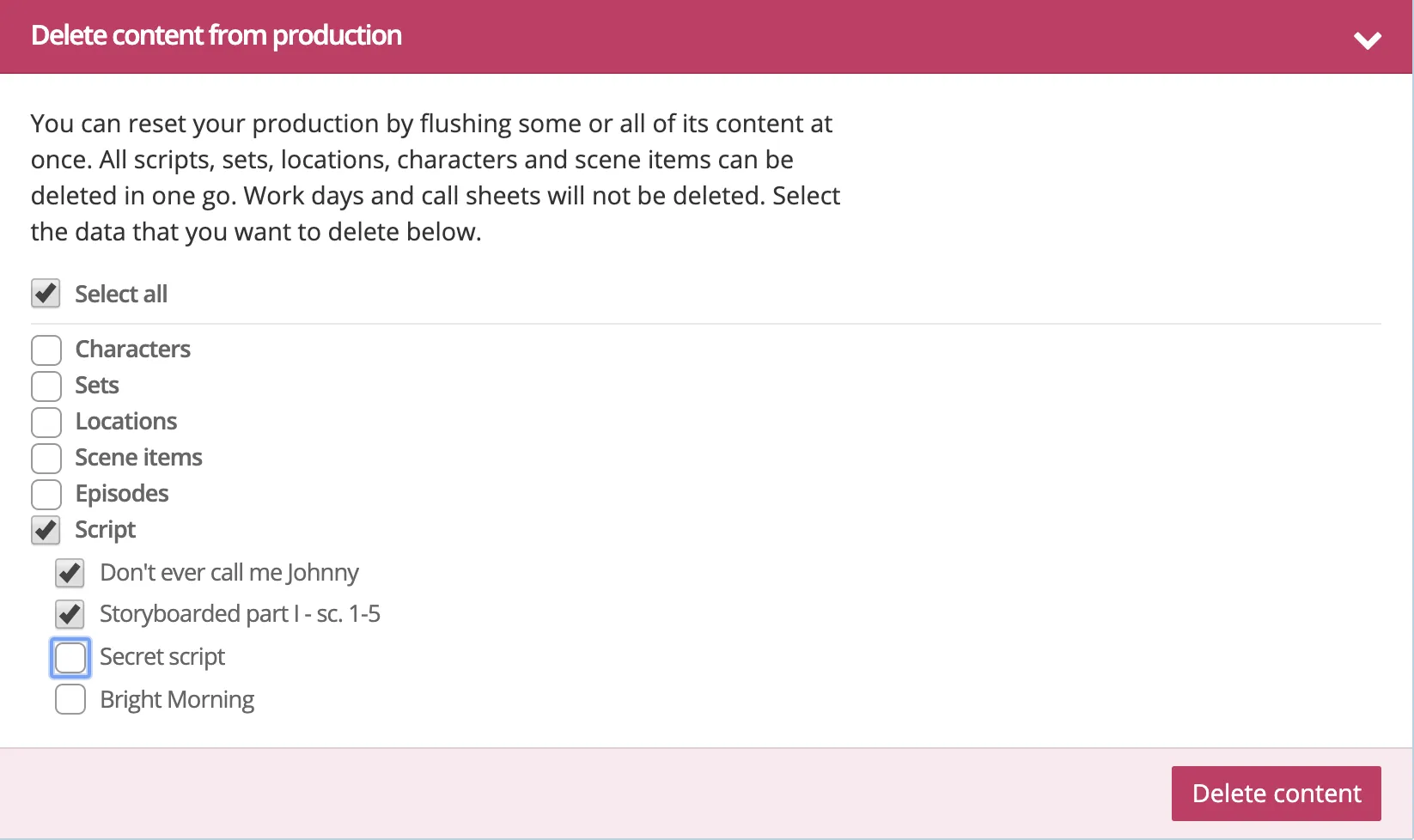
In this section, you can delete all project data or choose specific types of content to remove.
- You cannot delete an episode without also deleting its script.
- You can delete a script without deleting its episode.
- To select multiple items for deletion, tick the Select All checkbox.
Note! You cannot recover data once it is deleted. Please note that you must have the appropriate permissions to bulk-delete data.
 <
<
Delete individual items
If you only need to remove a single element — such as a character, set, or episode — open that item’s edit page and delete it there.
Was this article helpful?
Thanks for your feedback!